How to Secure Your Cloud Backups — iCloud, Google Photos & Dropbox

Cloud backup is safer than keeping your only copy on one device, but it is not automatically private, tamper-proof or recoverable. This guide shows how to protect accounts, backups, shared folders and sensitive files without confusing syncing with a complete backup strategy.

Cloud Backup Safety Lab Editorial Team Updated July 25, 2026 22-minute read
Quick answer Secure cloud backups with a unique account password, phishing-resistant two-step verification, recovery codes, restricted sharing, version history and a second independent copy. For highly sensitive files, encrypt them before upload so the provider stores unreadable data. On Apple devices, consider Advanced Data Protection where available; in Google Photos, separately confirm whether Locked Folder backup is enabled.
Secure file synchronization across OneDrive, Dropbox, iCloud and Google Drive

Cloud backup security is more than encryption at rest

Most mainstream providers encrypt data while it travels to their servers and while it sits on storage infrastructure. That is useful, but it does not answer every risk. Your files may still be readable after a successful account login, exposed by an overly broad sharing link, removed by a synced deletion or recoverable only through an account recovery process you have not tested.

A secure setup combines five controls: account protection, device protection, sharing permissions, recovery planning and encryption key custody. The right balance depends on whether you are protecting family photos, business records, regulated data or a full device backup.
Start here: Enable strong sign-in security, verify backup status, audit sharing and test a restore before relying on the cloud.
Start here: Check storage capacity, sync status, app permissions, network restrictions and whether the item is synced or only stored locally.
Start here: Compare key custody, authentication, sharing controls, version history and client-side encryption support, not just storage price.
Start here: Stop syncing changes, check Trash or Recently Deleted, review version history and preserve any device that may still hold a local copy.
Five layers to verify
1
Account
Password, passkey, security key, recovery
2
Device
Screen lock, disk encryption, updates
3
Permissions
Named access, link scope, expiry
4
Encryption
Provider keys or user-held keys
5
Recovery
Versions, offline copy, restore test
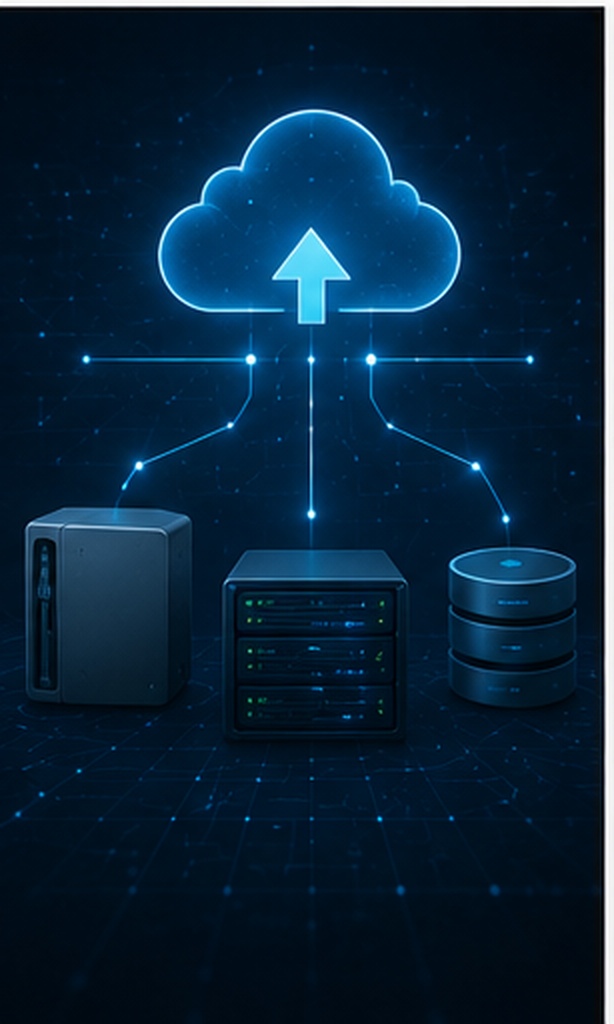
Layered cloud backup security ecosystem with connected protection controls

Choose the protection level that matches your risk

Personal photos

Protect a phone and family memories

Prioritize account recovery, Google Photos or iCloud status, Locked Folder settings and a second copy outside the same account.

Shared computer

Keep synced folders private on a PC

Use separate Windows accounts, device encryption and an optional local folder access layer for cloud clients.

Sensitive work

Store confidential or regulated files

Add client-side encryption, least-privilege sharing, audit logs, documented recovery and contractual compliance controls.

Select a situation to get a practical starting plan.

Built-in, free and advanced ways to secure cloud backups

Use the simplest method that controls your real threat. Adding encryption without recovery planning can make data loss more likely, while relying only on a provider password leaves sharing and local-device risks unresolved.

iCloud Backup Security

iCloud security and Apple Advanced Data Protection settings illustration

Best for Apple users who want automatic device backup with stronger key protection.

Difficulty: Easy10–20 minStrong with ADP

How to secure an iPhone or iPad backup

  1. Open Settings, select your Apple Account, then open iCloud and iCloud Backup. Confirm that backup is on and check the latest successful backup time.
  2. Turn on two-factor authentication and review trusted phone numbers, trusted devices and account recovery options.
  3. Where available and appropriate, enable Advanced Data Protection. Record your recovery contact or recovery key before activation.
  4. Review which apps use iCloud. Remove unnecessary backup data, but do not delete a device backup unless you understand that automatic backup for that device may stop.
  5. Keep an independent local backup for irreplaceable data. A cloud account is one recovery path, not your only copy.
What syncs and what does not: iCloud Backup generally covers device information that is not already synced separately to iCloud. iCloud Photos and iCloud Drive are synchronization services, so deletions and edits can propagate. Treat sync and backup as related but different tools.

How do I back up my MacBook Air to iCloud?

iCloud Drive can sync Desktop, Documents and other selected files, but it is not a full Mac system image. Use Time Machine for a complete Mac backup, then use iCloud Drive for selected files you want available across devices.

How to back up iPhone when iCloud storage is full

Review the next backup size, remove old device backups you no longer need, reduce app data included in backup or upgrade storage. Another legitimate option is an encrypted backup to a Mac or Windows PC. Do not delete the only working backup before creating a replacement.

Best points
  • Automatic and deeply integrated
  • Advanced Data Protection extends end-to-end encryption to more data categories
  • Simple device restore
Limitations
  • Recovery becomes your responsibility with stronger encryption
  • Availability of Advanced Data Protection can vary by region
  • iCloud Drive is not a full Mac backup

Google Photos Backup Security

Private photo protection and hidden album security on an iPhone

Best for automatic photo backup with careful Locked Folder and account settings.

Difficulty: Easy10 minModerate–Strong
  1. In Google Photos, open Photos settings and Backup. Confirm the correct Google Account, backup quality and folders selected for backup.
  2. Open Locked Folder settings and explicitly verify whether Locked Folder backup is on. Do not assume private items are backed up.
  3. Protect the Google Account with a passkey or hardware security key, keep backup codes offline and remove old devices from account access.
  4. Review partner sharing, shared albums and third-party apps with account access.
  5. Export or copy irreplaceable photos to a separate encrypted drive periodically.
Locked Folder recovery warning: Items that were never backed up may be lost if app data is cleared, the app is removed, the phone is reset or the device fails. Before changing devices, verify Locked Folder backup and test access from another trusted device.

How to sync Google Photos to Gallery

Google Photos backup uploads selected device folders to your Google Account. It does not necessarily download every cloud photo into the phone’s local gallery. To keep a local copy, download selected items or use the device maker’s supported sync feature. Avoid third-party “sync” apps that request broad photo-library access unless you trust their privacy model.

Best points
  • Automatic cross-device photo access
  • Device screen lock protects Locked Folder locally
  • Strong Google Account security options
Limitations
  • Backup status must be checked separately for Locked Folder
  • Shared album and partner settings can expose more than intended
  • Cloud photos are tied to account recovery

WhatsApp Backup Encryption and Security

WhatsApp app lock and encrypted chat backup security illustration

Best for protecting chat backups stored in iCloud or Google Drive.
Difficulty: Easy5–10 minStrong when enabled
  1. Open WhatsApp Settings, Chats, Chat backup, then End-to-end encrypted backup.
  2. Turn it on and choose either a memorable password or a 64-digit encryption key.
  3. Store the recovery secret offline in a password manager or secure physical location. Do not save it only in the same cloud account.
  4. Run a new backup and confirm its completion time.
  5. Before moving between iPhone and Android, use WhatsApp’s official transfer workflow. A Google Drive backup cannot simply be copied into iCloud, or vice versa, as a normal file.
Do not lose the secret: End-to-end encrypted backup is designed so the provider cannot recover the backup for you without the password or key. Strong privacy requires stronger recovery discipline.
Best points
  • Backup content can be end-to-end encrypted
  • Works with supported iCloud and Google Drive backups
  • Clear password or key model
Limitations
  • Forgotten secrets can make the backup unrecoverable
  • Cross-platform transfer is not ordinary cloud-file migration
  • Metadata and device security still matter

How to Encrypt Files Before Uploading to Cloud Storage

Cloud backup encryption platforms protecting files before upload

Best for sensitive files that should remain unreadable to the storage provider.
Difficulty: Medium15–30 minVery strong
  1. Choose a reputable client-side encryption tool that supports your operating system and recovery needs. Common approaches include encrypted vaults, encrypted disk images and password-protected archives.
  2. Create the encrypted container outside the cloud folder first. Use a long unique passphrase and save a recovery copy securely.
  3. Add a small test file, close the container and then move or sync the encrypted output into the cloud folder.
  4. Verify that the cloud website cannot preview the protected contents. Download the encrypted item to another device and confirm it stays unreadable without the key.
  5. Test restoration before moving important data. Keep a second copy of both the encrypted data and the recovery material.
Zero-knowledge outcome: When implemented correctly, the cloud provider stores ciphertext and does not hold the decryption secret. This improves confidentiality but can reduce browser preview, search, collaboration and recovery convenience.
Best points
  • You control the decryption secret
  • Works across many storage providers
  • Useful for confidential archives
Limitations
  • Lost keys can mean permanent data loss
  • Live collaboration becomes harder
  • Encrypted containers can create sync conflicts if opened on several devices

Secure Cloud Collaboration With Least-Privilege Sharing

Secure cloud file transfer without exposing passwords or broad access

Best for teams that need editable files without exposing entire folders.
Difficulty: Easy10–30 minDepends on governance
  1. Share with named accounts instead of “anyone with the link” whenever possible.
  2. Give Viewer or Commenter access unless editing is required.
  3. Set expiry dates where supported and avoid granting access at a parent folder when only one file is needed.
  4. Review inherited permissions, external members and third-party integrations.
  5. After a project or employee departure, transfer ownership where needed, revoke access and rotate any shared secrets.
Best points
  • Preserves browser editing and version history
  • Easy to revoke named users
  • Supports team workflows
Limitations
  • Recipients may download or copy permitted content
  • Parent-folder inheritance can widen access
  • Does not hide content from the provider by itself

Cloud security comparison matrix

Popular cloud storage services compared for backup and file security

Filter by the type of control you care about. “Provider-held keys” means the service manages ordinary encryption keys; it does not mean the service is insecure, but it is different from user-held end-to-end encryption.

Service or methodEncryption modelStrong sign-inSharing controlsBest forMain caution
iCloud with Advanced Data ProtectionEnd-to-end encryption for most iCloud categories when enabledTwo-factor authentication, trusted devicesApple sharing controls vary by serviceApple households prioritizing privacyRecovery is more demanding; availability can vary by region
Google Drive / PhotosEncrypted in transit and at rest; provider-managed keys for consumer accountsPasskeys, security keys, 2-Step VerificationNamed users, roles, link restrictionsCross-platform convenience and collaborationCheck sharing and Locked Folder backup separately
DropboxAES-256 at rest and TLS in transit; advanced team key features on eligible plansTwo-step verification and device controlsLinks, passwords or expiry on eligible plansFile sync, versioning and external sharingConsumer content is not zero-knowledge by default
OneDriveProvider encryption plus Personal Vault for stronger access checksMicrosoft account security and second-step verificationNamed sharing and organization policiesMicrosoft 365 usersPersonal Vault is an access layer, not general zero-knowledge storage
Client-side encrypted vaultUser-held key; provider stores ciphertextDepends on tool and accountShare encrypted data plus secret separatelyConfidential archives and regulated materialKey loss and collaboration friction
Cloud Secure desktop editionLocal access control placed over supported Windows sync folders; it does not change the provider's encryption keysProduct password in addition to the cloud account loginProvider-side links, collaborators and web access remain governed by the cloud serviceWindows PCs where several people may reach locally synced Dropbox, Google Drive, OneDrive or Box foldersCompatibility should be tested with current Windows and current sync-client versions before important data is entrusted to it
Verdict: choose a provider for reliability and workflow, then add stronger account security, permission audits and client-side encryption only where the sensitivity justifies the extra complexity.

File sharing risk calculator

0

Low risk

Use the form to evaluate a sharing setup.

A focused option for shared Windows computers

Cloud Secure puts an extra sign-in step in front of locally synced cloud folders

The desktop edition is designed for a specific gap: a Windows session may already be open while Dropbox, Google Drive, OneDrive or Box is mounted and easy to browse. Cloud Secure adds its own authenticated console, discovers supported desktop clients and lets the owner control one provider at a time or apply protection across the configured set.

The useful distinction is local scope. The cloud provider can keep transferring files in the background while ordinary access through the Windows folder path is restricted. The application then provides an authenticated route for the owner to open the protected location.

Boundary to understand: this is not file encryption, a replacement for Windows disk encryption, or protection against somebody who can sign into the same cloud account through a browser or another device.

Four named desktop providersPer-account and bulk controlsProvider sync can stay activeSeparate product password
Cloud Secure
Local protection enabled

Configured providers

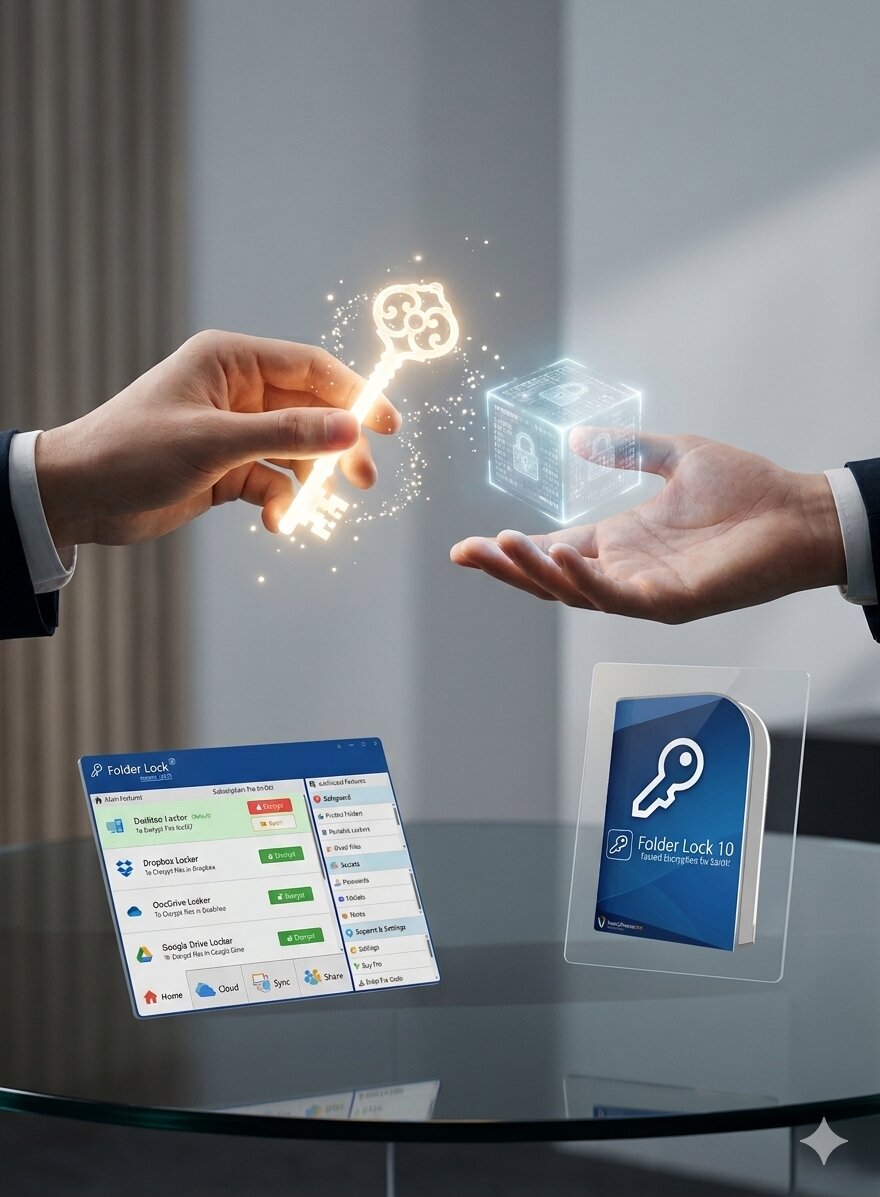
Conceptual illustration based on the documented workflow, not a product screenshot.
Cloud Secure desktop software product box for Windows cloud folder protection

What Cloud Secure adds to a Windows cloud-sync setup

The desktop product is most useful as a convenience and privacy control on a computer you own. Its documented functions are narrower than full cloud-backup security, so each benefit below is paired with the limit that matters.

01

One product credential for supported providers

The owner authenticates to Cloud Secure separately from the Dropbox, Google, Microsoft or Box account. That reduces casual access from an already-open Windows session.

Local access layer
02

Detection of installed sync clients

The application checks the Windows profile for compatible provider software, which reduces manual folder selection during initial setup.

Setup assistance
03

Individual or combined protection controls

You can manage one configured provider without changing the others, or apply the same local restriction to the whole supported group.

Multi-provider control
04

Owner access through the application

After local browsing is restricted, the authenticated user opens the chosen provider from inside the Cloud Secure console rather than its normal Windows shortcut.

Controlled entry point
05

Synchronization can continue in the background

The documented design separates local browsing from the provider client, allowing file transfers to proceed without leaving the folder openly accessible.

Continuity benefit
06

Password-strength guidance during setup

The Windows setup flow includes feedback while the owner creates and confirms the product password. A password manager remains safer than relying on memory alone.

Safer configuration
07

Optional registered-user recovery path

The full desktop edition documents a Master Key recovery setting tied to the purchase serial. Decide whether to enable it, secure the serial separately and test the official recovery process before protecting important folders.

Recovery tradeoff
08

No provider-blind encryption

The application does not turn ordinary cloud data into ciphertext that only you can decrypt. Use client-side encryption when the provider itself must not be able to read file contents.

Add another layer

How to protect synced cloud folders using Cloud Secure

  1. Prepare a test environment. Sign in to the official desktop client for each provider you plan to protect, let synchronization finish and create a harmless test folder.
  2. Install the Windows application. Use the official NewSoftwares download, run the installer under the Windows profile that owns the sync folders and restart if the installer requests it.
  3. Create the Cloud Secure credential. Choose a password that is not reused for Windows or any cloud account. Review the strength feedback, confirm the entry and save it in a trusted password manager.
  4. Review detected providers. Confirm that the application has found the correct Dropbox and Box, plus Google Drive and OneDrive clients. Do not attach similarly named folders created by backup utilities or old user profiles.
  5. Apply the local restriction. Protect providers individually first. After each change, test that the ordinary Windows path is unavailable and that the authenticated in-app route opens the correct folder.
  6. Test background transfer. Upload a non-sensitive file from another trusted device, allow time for synchronization, then authenticate locally and verify the file arrived intact.
  7. Document recovery and registration. Registered users should decide whether to enable the serial-based Master Key option, store the purchase record separately and confirm the application reports the expected license state.
  8. Keep the surrounding controls. Leave Windows device encryption, separate user accounts, provider multi-factor authentication and sharing reviews enabled.
Acceptance test

Verify the workflow before adding sensitive data

  • Restart Windows and check whether the intended protection state returns.
  • Open every normal provider shortcut and confirm the local restriction behaves consistently.
  • Test an upload, a download, a rename and a deletion with disposable files.
  • Check that the provider still records versions or deleted files as expected.
  • Confirm the official recovery route while you still know the password.
  • Repeat the test after major Windows or cloud-client updates.
Do not test with your only copy. A local access product should be evaluated with replaceable data before it becomes part of a real backup routine.
Cloud Secure desktop interface used to manage protected cloud folders

How cloud encryption, permissions and versions interact

Encryption in transit protects network traffic between your device and the service. Encryption at rest protects storage media in the provider’s infrastructure. Neither automatically prevents a signed-in user, authorized application or provider-controlled service from reading content.

Provider-held keys enable search, previews, recovery and collaboration. User-held keys improve confidentiality because the provider cannot decrypt the data, but they place recovery responsibility on you.

Version history can recover earlier file states after accidental edits or some ransomware events, but retention periods and account plans vary. If a deletion syncs everywhere and retention expires, versioning is no longer a backup.

Permissions often inherit from a parent folder. Sharing a parent can expose new files added later. Move sensitive items into a separately controlled folder rather than relying on complicated exceptions.

HIPAA, GDPR and similar obligations can require contracts, documented roles, retention controls, breach procedures and data-subject processes. Encryption helps, but a consumer account alone does not prove compliance.

Which is More Secure Dropbox or Google Drive

For most personal users, neither is universally “more secure.” Both provide strong infrastructure encryption and account controls. The safer choice is the one you configure correctly and can recover reliably.

Security questionGoogle DriveDropboxPractical verdict
Encryption at restAES-256 for Drive contentAES-256 for files at restBoth use strong provider-side storage encryption
Account protectionPasskeys, security keys, 2-Step VerificationTwo-step verification, device and session controlsGoogle has especially mature phishing-resistant options; both require correct setup
SharingNamed accounts, Viewer, Commenter, Editor, link controlsNamed shares and link controls, with more options on some paid plansDropbox can be attractive for external sharing; Google is strong for live collaboration
Zero-knowledge consumer storageNot by defaultNot by defaultEncrypt before upload for provider-blind confidentiality
Business controlsWorkspace admin, DLP and client-side encryption on eligible editionsTeam controls and advanced encryption features on eligible plansCompare the exact business plan and contractual requirements
Bottom lineChoose Google Drive for integrated productivity and strong account-security options. Choose Dropbox for file-centric sync and sharing workflows. For sensitive archives, add client-side encryption to either.
Is Dropbox more secure than email? Usually, a restricted cloud share is safer than sending an uncontrolled attachment because access can be changed later and the file is not copied into multiple inboxes. The result still depends on link settings, recipient behavior and account security.

Client-side encryption before cloud upload

Secure folder synchronization workflow between a protected device and cloud storage
1

Select

Choose only files that need stronger confidentiality.

2

Encrypt

Create a vault or archive with a unique passphrase.

3

Verify

Confirm the protected output opens and the original is backed up.

4

Sync

Upload only the encrypted output to the cloud folder.

5

Restore-test

Download elsewhere and prove recovery before relying on it.

How to audit who has access to shared cloud folders

Cloud access audit trail and security event logging dashboard

Encryption in transit vs at rest

Encryption explainer showing how readable files become protected data

In transit

Protects data while it moves across networks between your device and the cloud service.

Your device
Encrypted channel →
Cloud endpoint

At rest

Protects disks, storage objects and backups inside the provider’s infrastructure.
Cloud app
Managed keys →
Encrypted storage
What providers do not always explain clearly: both controls reduce important risks, but neither automatically means the provider cannot decrypt your content. That requires end-to-end or client-side encryption with keys unavailable to the provider.

Cloud Secure on Windows, iPhone, iPad and Android

Cross-platform cloud synchronization across desktop and mobile devices

The desktop and mobile editions share a name, but they should not be treated as the same product. The Windows build works around local desktop sync folders. The app-store editions use a mobile interface and a separate feature set.

Desktop edition

Windows folder-access control

Vendor material lists Dropbox and Box, plus Google Drive and OneDrive as the supported desktop services. It also lists Windows 11, 10, 8 and 7, plus Windows Server 2008 through 2019 in both 32-bit and 64-bit variants.

  • Works with locally installed provider clients.
  • Supports common Windows file systems including NTFS, exFAT and FAT32.
  • No equivalent native macOS desktop workflow is documented.
Download the Windows evaluation build →
Mobile editions

Separate app-store products

The research material identifies iPhone and Android editions with privacy tools for protected content and failed-login monitoring. The current Apple listing describes cloud-drive access controls using a password, PIN or pattern, along with additional privacy modes.

  • Do not assume a desktop license activates mobile purchases.
  • Do not assume the mobile app protects the operating system's sync folders in the same way as Windows.
  • Review the current store listing, supported OS version and privacy disclosure before installing.
Release-history caution

The supplied desktop history records version 1.1.3 in April 2022, with a Windows 11 compatibility adjustment. The Apple listing shows its most recent published mobile update in 2019. Cloud clients change frequently, so compatibility testing matters more than an old operating-system checklist.

Security caution

A vendor claim that an application runs on Windows 7 or 8 is not a reason to keep an unsupported operating system online. Use a currently supported Windows release for any device that holds cloud credentials.

NeedBest platform approachWhere Cloud Secure fits
Full-device backupWindows Backup or system image, Time Machine, Android device backup, or iCloud BackupIt does not create a full computer or phone backup
Local privacy on a shared Windows PCSeparate Windows accounts, screen lock and device encryptionDesktop edition can add another authenticated barrier around supported sync folders
Mac cloud foldersSeparate macOS accounts, FileVault and provider-native settingsNo documented Windows-style native Mac edition
Mobile cloud-drive privacyDevice lock, provider app protection and current app-store privacy controlsEvaluate the separate iOS or Android app rather than expecting the desktop workflow
Provider-blind confidentialityClient-side encryption with a user-held keyCloud Secure is not a substitute

Make a google doc password protected

Google Docs does not offer a normal per-document password prompt for consumer documents. Access is controlled through your Google Account and the document’s sharing permissions. To protect a sensitive document, share it only with named accounts, give the minimum role and remove access when the work is finished.

For a file that must open with a separate password, export it to a format that supports password encryption, such as a properly encrypted PDF or Office document, or place it in a client-side encrypted archive before upload. The tradeoff is that browser editing, comments, search and live collaboration may no longer work.

Avoid “password protection” extensions that ask for broad Drive access without a clear privacy policy. An extension may be able to read or alter documents. Prefer built-in sharing or a well-audited encryption tool.

Can I password protect a Google Sheet?

The same limitation applies. Google Sheets uses account and sharing permissions rather than a separate password for each sheet. Protected ranges control editing inside a sheet; they are not encryption and do not hide the data from viewers who already have access.

Google Titan Security Key USB setup

USB hardware security key used for phishing-resistant Google account authentication

A hardware security key is a small FIDO-compatible device used for phishing-resistant sign-in or as a second verification step. It is not an ordinary USB flash drive, and turning a normal USB stick into a secure FIDO key is not a safe substitute.

  1. Buy a genuine FIDO2-compatible key from Google or another trusted vendor. Choose USB-C, USB-A or NFC based on your devices.
  2. Open your Google Account security settings and add the key under passkeys or 2-Step Verification.
  3. Follow the prompt to insert or tap the key and confirm physical presence.
  4. Register a second backup key and store it separately.
  5. Keep recovery codes offline and remove lost keys from the account immediately.
Why it helps
A
Stops password-only attacks
A stolen password is not enough
B
Resists fake sign-in pages
FIDO verifies the real service origin
C
Requires physical presence
Touch or tap confirms the attempt

Compliance Considerations for Cloud Backup Security — iCloud, Google Photos & More

For HIPAA, GDPR and other regulated environments, security features must fit a documented governance program. Confirm whether the service offers the required business agreement, regional data controls, audit logging, retention, legal-hold support, administrator roles and incident-response commitments.

Consumer iCloud, Google Photos or personal Dropbox accounts may be useful for ordinary personal data, but they should not be assumed compliant for regulated business data. The organization remains responsible for lawful processing, access control, data minimization, deletion workflows and evidence that its controls are actually used.

Practical minimum: classify data, use organization-managed accounts, require strong authentication, restrict external sharing, document offboarding, test restoration and encrypt especially sensitive exports before uploading.

When cloud backup security fails

iCloud backup will not completeLikely cause: insufficient storage, network or power conditions, or an account problemFix: check the estimated backup size, available storage, Wi-Fi, power and Apple service status. Make an encrypted computer backup before removing the last usable cloud copy.
Google Photos reports completion but items are missingLikely cause: wrong account, excluded device folder, unsupported file or a local-only Locked Folder itemFix: confirm the signed-in account, backup selection and Locked Folder backup setting. Search by date and inspect Trash before clearing app data.
Can I recover deleted photos from Locked Folder?Likely cause: the item was never uploaded or has been permanently removedFix: verify whether Locked Folder backup was enabled, then check another trusted device. A local-only item may be unrecoverable after reset, uninstall or storage failure.
WhatsApp encrypted-backup password is forgottenLikely cause: the recovery secret is unavailableFix: use WhatsApp's legitimate in-app recovery path while still signed in. Do not use cracking utilities. A lost 64-digit key or backup password may be intentionally impossible to reconstruct.
Cloud sync creates conflicted copiesLikely cause: an encrypted container was open on more than one device or edits overlappedFix: stop editing, preserve every conflict copy, let synchronization settle and compare timestamps before restoring the correct version.
Shared access remains after one link is removedLikely cause: direct permission, group membership or inherited parent access still existsFix: review the complete access panel, parent folders, groups and shared-drive membership. Revoke every route, not only the visible link.
Cloud Secure does not find a providerLikely cause: the desktop client is absent, installed under another Windows profile or not fully initializedFix: install and sign in to the official provider client under the same Windows account, let it create its local folder, then reopen Cloud Secure. Test with a non-sensitive account first.
The protected folder still opens normallyLikely cause: protection was not applied to that provider, a second folder path exists or another Windows profile owns the sync clientFix: verify the selected provider in Cloud Secure, check for duplicate sync roots and repeat the test after restarting Windows.
Synchronization stops after local protection is enabledLikely cause: a cloud-client update changed its folder behavior or the client is not running under the expected accountFix: unlock through the official application, repair or update the provider client, confirm synchronization, then reapply protection and test both directions.
The Cloud Secure password is forgottenLikely cause: no usable product credential or recovery configuration is availableFix: registered full-version owners can use the documented serial-based recovery route only when the relevant Master Key option was enabled. Otherwise contact NewSoftwares with purchase proof. Do not attempt to bypass the protection.
You need to remove Cloud Secure safelyLikely cause: uninstalling while providers remain restricted could disrupt normal local accessFix: authenticate, return every configured provider to normal access, verify synchronization and a separate backup, then uninstall through Windows settings and restart.
A cloud backup was deleted to free spaceLikely cause: deletion also removed the only restore point or stopped automatic backupFix: create a replacement immediately if the device still works. Confirm the new backup before a reset, trade-in or repair.

Cloud Secure pricing: what the desktop purchase includes

The current NewSoftwares checkout lists the Windows full edition at $34.95 as a one-time purchase. The evaluation download is the sensible first step because the product depends on the behavior of the Windows profile and the installed cloud clients.

Windows evaluation download

Use disposable files to test provider detection, local restrictions, restart behavior, synchronization and recovery before buying.

Download free version →

Windows full edition

The paid license removes evaluation notices and enables the complete documented desktop feature set, including the registered-user recovery option described by the vendor.

$34.95
Check current checkout →
Separate mobile terms: the iPhone/iPad and Android editions are distributed through their respective app stores and may use their own in-app purchase model. Do not assume the Windows purchase transfers to mobile.

Is it worth it? The value is clearest on a shared or occasionally unattended Windows computer with several supported sync clients. It is a weak match for macOS-only households, users who already isolate everyone in separate encrypted operating-system accounts, or anyone whose primary requirement is end-to-end encryption.

Which method or tool is right for you?

Your situationRecommended methodIs Cloud Secure a fit?Honest alternative
Automatic iPhone recoveryiCloud Backup, strong Apple Account security and a verified second copyThe Windows edition is not relevantEncrypted Finder or iTunes backup plus Time Machine
Private Google Photos collectionSecure the Google Account and verify ordinary and Locked Folder backup separatelyOnly indirectly, when a Windows sync folder also needs local restrictionEncrypted offline archive for the most sensitive originals
Family Windows PC with several cloud clientsSeparate Windows users, device encryption, provider MFA and local sync-folder controlsYes, this is the strongest desktop use caseKeep cloud clients inside one private Windows account and sign out when finished
Mac desktop with Dropbox or DriveFileVault, separate macOS accounts and provider-native controlsNo documented native desktop equivalentEncrypted disk image or a reputable client-side encrypted vault
iPhone, iPad or Android cloud-drive privacyDevice security, provider settings and a currently maintained mobile privacy appPossibly, but evaluate the separate mobile edition and store disclosuresProvider app biometric controls or an operating-system secure folder where available
Confidential business archiveManaged business cloud account, user-held encryption keys and a recovery policyOnly as an extra endpoint barrier on supported Windows PCsEnterprise key management or an audited encrypted repository
Live team collaborationNamed access, least privilege, expiry, audit logs and organization-managed accountsNot central to the collaboration controlsGoogle Workspace, Microsoft 365 or Dropbox team administration

How different setups solve different problems

Home office

A private Windows profile, device encryption and Cloud Secure were combined so provider transfers could continue while normal folder browsing required another credential.

Composite scenario, not a customer endorsement
Family photo archive

Locked Folder backup was verified before a phone upgrade, then a separate encrypted drive copy was created.

Composite scenario, not a customer endorsement
Small legal team

Named sharing, quarterly permission reviews and client-side encryption were used for closed-case exports.

Composite scenario, not a customer endorsement
Freelance designer

Dropbox stayed convenient for client delivery, while contracts and identity documents were encrypted before upload.

Composite scenario, not a customer endorsement
Home office

A private Windows profile, device encryption and Cloud Secure were combined so provider transfers could continue while normal folder browsing required another credential.

Composite scenario, not a customer endorsement
Family photo archive

Locked Folder backup was verified before a phone upgrade, then a separate encrypted drive copy was created.

Composite scenario, not a customer endorsement
Small legal team

Named sharing, quarterly permission reviews and client-side encryption were used for closed-case exports.

Composite scenario, not a customer endorsement
Freelance designer

Dropbox stayed convenient for client delivery, while contracts and identity documents were encrypted before upload.

Composite scenario, not a customer endorsement

Cloud backup security FAQ

What is cloud backup security?
It is the combination of controls that keeps backups confidential, available and recoverable. It includes sign-in security, encryption, device protection, permissions, version history and a tested restore process.
Is data stored in the cloud truly encrypted?
Major providers generally encrypt data in transit and at rest. That does not always mean end-to-end encryption. With provider-managed keys, the service can decrypt data to deliver features such as previews, search and collaboration.
Can cloud service employees access my files?
Providers restrict and audit internal access, but ordinary provider-managed encryption does not technically make content unreadable to the provider in every circumstance. Client-side or end-to-end encryption changes that key-custody model.
What is zero-knowledge encryption in cloud storage?
It means the service does not possess the secret needed to decrypt your content. You control the key. This improves privacy but makes lost-password recovery and browser-based collaboration harder.
How do I share sensitive files via cloud without risk?
Risk cannot be reduced to zero. Share with named accounts, use the minimum permission, set expiry where supported, verify the recipient, avoid public links and encrypt especially sensitive exports before upload.
How do I revoke access to a shared cloud file?
Open the file’s sharing or Manage access panel, remove the person or link, then inspect parent folders, groups and shared-drive membership. Access may remain through another inherited route.
How do I back up my MacBook Air to iCloud?
Use iCloud Drive for selected files and Desktop/Documents syncing. Use Time Machine for a complete Mac backup that includes system data and supports full restoration.
How do I stop backup in iCloud?
Open iCloud Backup settings and turn off backup for the device. Before doing so, create another verified backup. Deleting the stored backup can also stop automatic iCloud backup for that device.
Can I recover deleted photos from Locked Folder?
Recovery depends on whether Locked Folder backup was enabled and whether the item still exists in the cloud. Unbacked-up local items may be permanently lost after deletion, app-data clearing, uninstall, reset or device failure.
Does Google Photos back up Locked Folder?
It can, but the setting must be enabled or items backed up individually. Verify it in Locked Folder settings rather than assuming ordinary photo backup includes those items.
Can I password protect a Google Doc?
Not with a separate built-in document password in the normal consumer Docs workflow. Use named-account sharing, or export and encrypt the file before upload if a separate password is required.
Can I password protect a Google Sheet?
Google Sheets uses account permissions. Protected ranges limit editing but are not encryption and do not hide data from viewers who already have access.
What is a USB security key?
It is a purpose-built FIDO authentication device that proves physical possession during sign-in. It is different from a normal USB storage drive.
How do I make a USB security key for Google?
Do not convert an ordinary flash drive. Buy a trusted FIDO2 key, register it in Google Account security settings and keep a second key or recovery method in a safe location.
Which is more secure, Dropbox or Google Drive?
Both can be secure when configured correctly. Google offers strong passkey and security-key options and integrated collaboration. Dropbox is strong for file sync and controlled sharing. Neither consumer service is zero-knowledge by default.
Is Dropbox safe for private photos?
It can be suitable if the account uses strong authentication and sharing is restricted. For highly private originals, encrypt them before upload and keep a second independent copy.
What exactly does Cloud Secure protect on Windows?
It restricts ordinary local access to configured Dropbox and Box, plus Google Drive and OneDrive sync folders and requires authentication through its own application. It does not encrypt cloud content, change sharing permissions or block access from the provider's website.
What should I do if I forget the Cloud Secure password?
Use only the vendor's owner-recovery process. The supplied documentation describes a serial-based route for registered full-version users when the Master Key recovery setting was enabled. If that route is unavailable, contact NewSoftwares with proof of purchase rather than attempting a bypass.

In-depth answers for migration, deletion and recovery

Transfer files from Dropbox to Google Drive without downloading

Server-to-server migration services can copy data between providers, but they require access to both accounts. For sensitive data, review the service’s privacy terms, permission scope and deletion policy before authorizing it. A safer but slower path is to use the official desktop sync clients on an encrypted computer, copy the files locally, verify checksums or counts, then revoke the old service.

For WhatsApp backups, do not treat the Google Drive or iCloud backup as an ordinary folder you can copy. Use WhatsApp’s official device-transfer process because backup formats and platform integrations differ.

How to delete backup files from Dropbox or remove photos

First determine whether you are deleting a synced file, a backup set or an account-level copy. A synced deletion may remove the file from every connected device. Confirm another copy exists, pause unnecessary sync clients, then delete and verify Trash or deleted-file retention.

To regain space safely, start with large replaceable files, duplicate exports and old device backups. Avoid deleting the only backup merely because the current device still works.

How to prevent unauthorized access to shared cloud folders

Use named accounts, least privilege and separate folders for separate audiences. Avoid placing confidential files under a widely shared parent folder. Review access on a schedule and after personnel changes.

When a person leaves, transfer ownership, remove group membership, revoke direct and inherited access, rotate shared passwords or keys, review active sessions and preserve records required by retention policy.

What happens to your files when a cloud service is breached?

The outcome depends on what was exposed. A password leak calls for password changes, session revocation and stronger authentication. A sharing-link leak calls for link revocation and a review of access logs. A provider infrastructure breach may expose encrypted data, metadata or account records depending on the incident.

Client-side encryption can reduce the impact on file contents, but you still need to rotate account credentials, inspect connected apps and confirm the integrity of restored files.

The bottom line

Reliable cloud-backup security comes from layers: strong account authentication, protected devices, carefully scoped sharing, version history, tested restoration and an independent second copy. Use client-side encryption when file contents must remain unreadable to the storage provider.

Cloud Secure is a reasonable specialist tool for a narrower desktop problem. On a compatible Windows computer, it can place another credential between an open user session and supported local sync folders while allowing the provider client to continue working. Its auto-detection, provider-by-provider controls and optional registered-user recovery make the workflow easier to operate than a manual folder workaround.

That recommendation has limits. Test the evaluation build with current cloud clients, use a supported Windows release and remember that the mobile editions are separate products. Keep provider MFA, Windows device encryption and a real backup strategy in place.